SDRecover

Recover deleted files from memory cards.

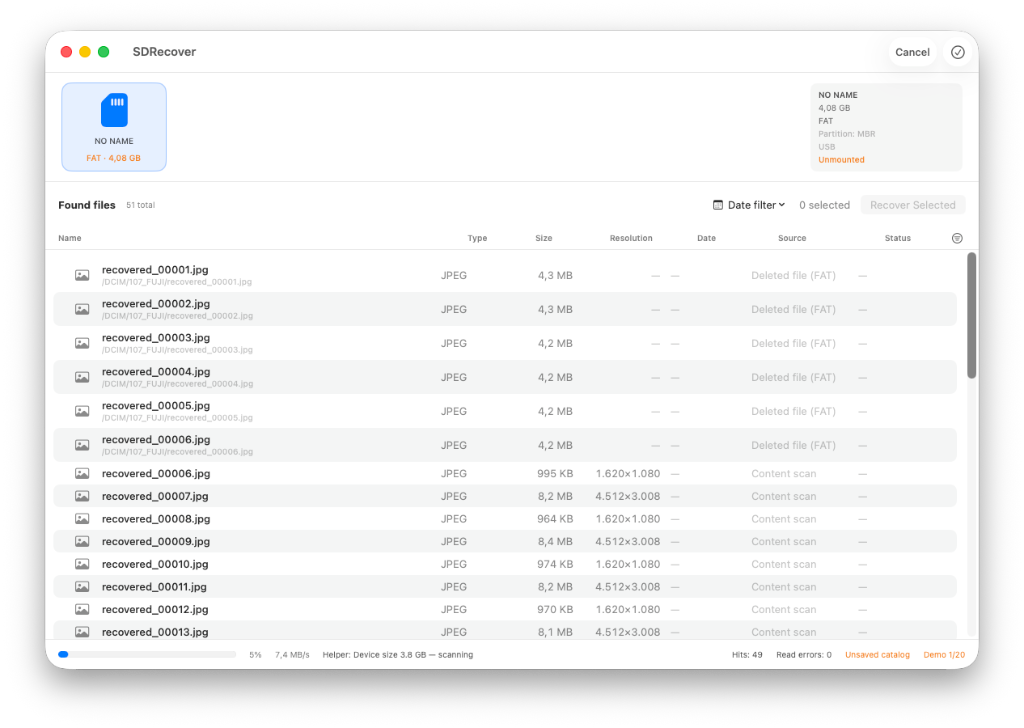
SDRecover helps recover deleted photos, RAW files, videos and other files from SD cards, USB drives and removable media. Found files can be previewed directly on your Mac before recovery.

macOS 14 or later Apple silicon & Intel Recover 20 files for free Unlimited Quick Look previews
SDRecover scan results showing volume strip, found files list, resolutions, and progress
Workflow

Recover your data in 5 steps

From choosing a volume to restoring files: SDRecover guides you through the process step by step.

1

Choose media

SDRecover detects connected memory cards and lists them for selection. Internal drives can be enabled optionally.

2

Configure the scan

Set file types, minimum size and optionally a minimum resolution to exclude thumbnails, for example.

3

Scan the card

SDRecover reads the card in a read-only manner during the scan. Depending on the condition of the media, Quick Scan and/or file carving are used.

4

Inspect files

Found files can be previewed directly with macOS Quick Look. Previews do not count towards the demo quota.

5

Recover files

Select the files you want and a destination folder on your Mac or another drive.

Scan methods

Two recovery methods for different situations

SDRecover uses two complementary approaches to find deleted files on a storage medium.

Quick Scan

The quick scan examines the file system for information about deleted files. When the required file system information is still available, this can provide original file names and folder structure and is usually much faster than a full scan.

File Carving

File carving searches the raw contents of the storage medium for known file types such as JPEG, HEIC, RAW images, videos and documents. It can also find files when the original file system information is no longer available.

The available results depend on the condition and previous use of the storage medium. Neither method can recover data that has already been overwritten.

Tools

Useful tools for recovery

Preview before recovery

Preview supported files with macOS Quick Look before deciding which files to recover.

Filter the scan

Limit the scan to specific file types, minimum file sizes or image dimensions to make large scans easier to work with.

Check recovered files

SDRecover extracts available file information such as dimensions, metadata and file type, and can flag files that cannot be opened or processed normally.

Save scan results

Save a scan as a catalog and open it again later without scanning the storage medium from scratch.

Permissions

Why does SDRecover need Full Disk Access?

macOS requires Full Disk Access for applications that need low-level access to storage devices. SDRecover uses this access to read the raw contents of a memory card during recovery.

A small helper service is used for operations that require elevated permissions. During a scan, the storage medium is unmounted from Finder and accessed read-only.

These permissions are used to access the storage device for recovery.

More about permissions in the documentation →

Formats

Supported media and file types

SDRecover is designed for SD cards, USB drives and other removable media. File carving can detect photos, RAW files, videos and documents among other types.

Supported file formats in the documentation →

Pricing

Check your files before you buy.

The free version lets you recover up to 20 files. Quick Look previews are not counted towards this limit.

One-time payment · No subscription

SDRecover Pro

License for unlimited recoveries from SD cards, USB drives and removable media on your Mac.

  • Try up to 20 files for free
  • Unlimited Quick Look previews
  • Unlimited recovery
  • One-time payment, no subscription
€ 9.99
One-time payment incl. VAT Buy Pro
Checkout via Stripe

License key by email after checkout.