SDRecover Support & Technical Details
Comprehensive documentation for SDRecover on Mac: permissions, filesystem support, file carving, and recovery workflows.
1. System Requirements
SDRecover was built specifically for macOS 14 (Sonoma) and later versions (including macOS Sequoia and macOS Tahoe).
- Operating System: macOS 14.0 or later.
- Hardware: Universal binary natively optimized for Apple silicon (M1, M2, M3, M4) and Intel 64-bit processors.
- Storage Space: Sufficient free disk space on your Mac or external drive for the recovered files.
- Permissions (two separate grants):
- Background item / Login Items approval for SDRecover
- Full Disk Access for SDRecover
- Supported Media: SD, SDHC, SDXC, microSD (via card reader or adapter), CompactFlash, USB flash drives, and external removable drives.
2. Getting Started & Workflow
SDRecover follows a streamlined, non-destructive workflow engineered to safeguard your media from accidental operating system writes:
- Connect Media: Insert your SD card, microSD card, or USB drive. SDRecover detects external storage automatically and displays it in the volume selector.
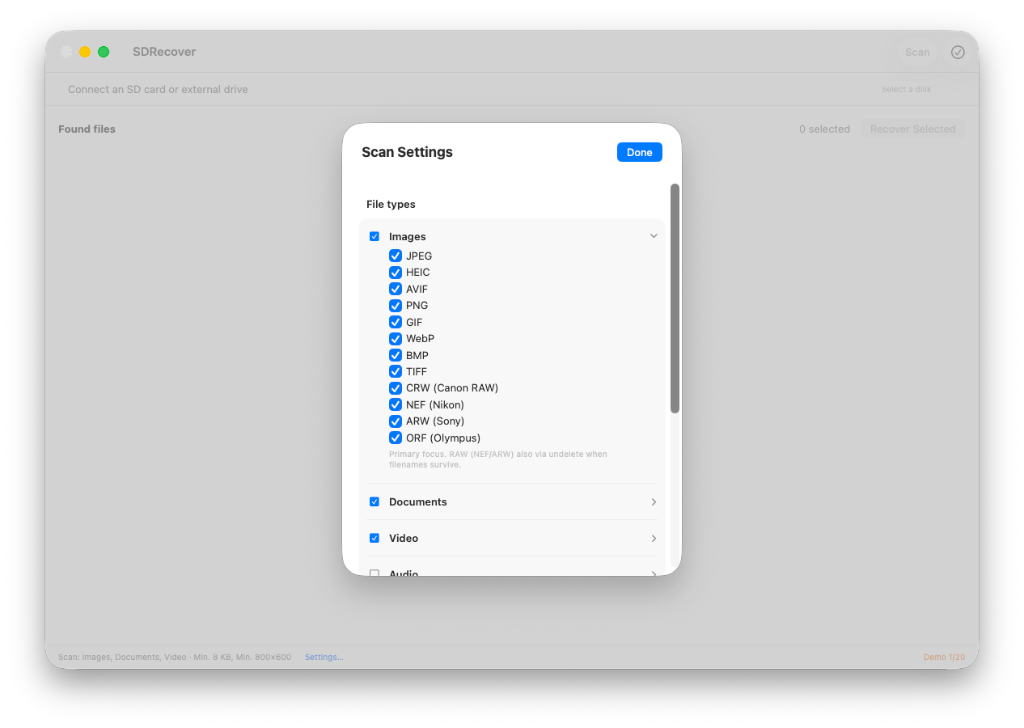
- Adjust Filters: Click Settings… to configure targeted file types (e.g. camera RAWs or video only) and establish minimum file size or resolution thresholds.
- Start Scan: Select the card in the volume bar and click Scan.
- Quality Pass & Preview: Results stream into the table live. Once completed, SDRecover evaluates EXIF data and integrity badges. Press Space for instant Quick Look inspection.
- Recover Selected: Mark the files you wish to restore, click Recover Selected, and pick an output folder on your Mac.
- Safe Remount: When you quit the application, previously unmounted cards are automatically remounted in Finder.
3. Scan Modes
Depending on your card's filesystem health, two scanning modes are available:
- Standard Mode (Filesystem + File Carving): The recommended default. First inspects filesystem structures for deleted directory records. In parallel or subsequently, file carving analyzes raw disk sectors for recognized file signatures.
- Quick Mode (Filesystem Only): Available specifically for FAT16/32 and exFAT. Only searches directory tables for marked-as-deleted entries. Takes only seconds, but requires intact partition headers and file tables.
Recovering original file names
When the file system still contains the necessary information, SDRecover can recover deleted files together with their original names and folder structure.
This depends on the file system and its available directory information. In particular, original names cannot always be recovered from memory cards that do not use long file names.
4. Filesystems Matrix & Partition Layouts
SDRecover supports all common camera and storage media filesystems:
| Filesystem | Named Undelete (Filenames) | File Carving | Notes & Capabilities |
|---|---|---|---|
| FAT16 / FAT32 | ✓ Complete | ✓ Yes | Standard on SD/SDHC cards up to 32 GB. Evaluates deleted directory table records. |
| exFAT | ✓ Yes (contiguous) | ✓ Yes | Standard on SDXC cards 64 GB and above. Reconstructs deleted entry sets with contiguous cluster runs. |
| HFS+ (Mac OS Extended) | ~ Catalog Walk | ✓ Yes | Walks catalog B-Tree; recovers contiguous data forks. |
| HFS Classic | Detect Only | ✓ Yes | Legacy Mac format. Detection supported; recovery through file carving. |
| APFS (Apple File System) | Detect Only | ✓ Yes | Due to Copy-on-Write and encryption, named undelete is unavailable; file carving works across all sectors. |
| NTFS (Windows) | Labeling | ✓ Yes | UI recognition; file recovery via file carving. |
Supported Partition Schemes
SDRecover parses partition tables in prioritized sequence:
- GPT (GUID Partition Table): Standard for modern Mac and PC formatted storage.
- APM (Apple Partition Map): Legacy Mac scheme. Ensures Mac-partitioned cards are not discarded as empty at sector 0.
- MBR (Master Boot Record): Standard on almost all camera memory cards.
- Whole Disk (Superfloppy): Storage without a partition table where the filesystem starts directly at LBA 0.
5. Supported File Formats & File Carving
File carving relies on precise file signatures (header and footer patterns) with strict structure validation (omitting ambiguous plain text patterns or weak syncs) to minimize false positives:
| Category | Formats / Extensions | Default Filter Status |
|---|---|---|
| Photos & Graphics | JPEG, PNG, GIF, WebP, BMP, TIFF | Active (min. 800×600) |
| Camera RAW Formats |
Canon (CRW, CR2, CR3), Nikon (NEF), Sony (ARW), Olympus (ORF)
|
Active |
| Modern Media Containers | HEIC (High Efficiency Image Container), AVIF (BMFF / ftyp parsing) | Active |
| Video & Audio Containers | MP4, MOV (QuickTime), M4A | Active |
| Documents | PDF, RTF, OLE (.doc), ZIP (including modern DOCX, XLSX, PPTX) |
Active (min. 8 KiB) |
| Audio & Music | MP3 (ID3 header), WAV, FLAC, OGG | Opt-in |
Note on Default Filters:
By default, SDRecover filters out files under 8 KiB and images below 800×600 pixels. This prevents thousands of thumbnail icons or cached thumbnails from crowding your recovery results. You can customize these thresholds in Scan Settings.
6. Permissions & Full Disk Access
To examine memory cards at the raw block level, macOS requires elevated security privileges. On first launch you need two separate grants — macOS walks you through both dialogs, but they are different settings.
Why is a helper service needed?
-
Direct Block Access: On macOS, standard user applications cannot read raw disk devices (
/dev/rdisk*). Even with Full Disk Access granted, macOS denies rootless block reads withOperation not permitted. -
Write Prevention: Before a sector scan starts, the volume must be cleanly unmounted (
diskutil unmountDisk force) to prevent macOS from writing Spotlight indexes or trash files to the card. - Read-only background service: The helper service runs strictly read-only and protects the storage medium from unwanted write operations.
Step 1: Allow the background item
The helper service must be allowed to run as a privileged background service. This is not the same as Full Disk Access.
- In SDRecover, open Disk Access… and click Install Helper….
- When macOS asks about a background item, open System Settings.
- Go to General → Login Items & Extensions.
- Under App Background Activities, make sure the switch next to SDRecover is on (being listed alone is not enough).
Step 2: Grant Full Disk Access to SDRecover
Important: Grant access to SDRecover
Under macOS (TCC), grant Full Disk Access to the SDRecover app. Enable the switch next to SDRecover in System Settings.
- In SDRecover, open Disk Access… and choose Open Full Disk Access Settings — or open System Settings manually.
- Navigate to Privacy & Security → Full Disk Access.
- Verify that the toggle next to SDRecover is switched on.
Uninstalling the helper
You can remove the helper service from your Mac at any time from inside the app via Disk Access… → Remove Helper….
7. Preview & Quick Look
SDRecover provides unrestricted, full previews for all discovered files before recovery:
- Native Quick Look: Highlight any item in the table and press Space.
- Zero Quota Deduction: Previewing files does not count against the free 20-file recovery quota. You can inspect as many files as you like prior to purchase.
- Large Files & EXIF Orientation: Previews support memory buffers up to ~80 MiB. Photos are rendered in their true camera orientation based on EXIF flags.
- Arrow Navigation: Use ↑ and ↓ to quickly step through the results table while the preview window stays active.
8. Export & File Extraction
Once you have selected your desired files, click Recover Selected:
- Select Destination: Pick an output folder on your Mac's internal drive or another external disk. Important: Never select the damaged memory card itself as the destination!
-
Naming & Collision Handling: When original filenames are preserved, they are retained. Carved files receive sequenced identifiers (e.g.
recovered_00001.jpg). Name collisions automatically append_1. - Mid-Scan Recovery: You do not have to wait for an hours-long scan to finish. You can select and recover files while scanning is active. The scan briefly pauses I/O during extraction (180 s timeout per file).
-
Save Catalog: Save your session as a
.sdcatcatalog file (JSON) to review or recover files later without repeating the scan.
9. License Model & Purchasing
Simple One-Time Purchase (€9.99)
SDRecover avoids subscriptions. Your purchase unlocks a perpetual license for your Mac.
- Free Demo: Recover up to 20 files completely free to verify recovery quality, with unlimited Quick Look previews.
- Pro License: One-time payment of €9.99 via Stripe.
- Activation: After checkout you receive a license key (success page and email). In the app open License…, paste the key, and activate.
10. Frequently Asked Questions
Why does my card not appear in the volume selector?
Check that the card reader is firmly connected and clean card contacts with a dry microfiber cloth. Does macOS Disk Utility see the device? If you are scanning an internal partition, make sure internal drives are enabled in SDRecover.
Why does the app show "Operation not permitted"?
This usually means Full Disk Access has not been granted to SDRecover yet. Open System Settings → Privacy & Security → Full Disk Access, enable SDRecover, then retry the scan. If the helper service does not respond at all, the background item is more likely missing under Login Items & Extensions → App Background Activities.
Why does the card remain unmounted during scanning?
This is an intentional protective measure. To prevent macOS from modifying file structures or writing background metadata during analysis, SDRecover unmounts the volume. When quitting the app, the card is remounted automatically.
Can fragmented RAW files be recovered?
It depends on the state of the filesystem and the file. With intact FAT/exFAT structures, SDRecover can use existing cluster allocation chains. On formatted media, file carving works with contiguous data regions. Fragmented files can be harder to recover or may not be fully recoverable.
Which languages are supported?
The user interface adapts to your macOS system language and includes English, German, Spanish, French, and Italian.